How to Download Instagram Reels on Android: Step-by-Step Guide
To download an Instagram Reel on Android, copy the Reel link from the Instagram app, paste it into an online downloader like ReelsDownloader in Google Chrome, and tap Download to save the MP4 video directly to your phone's storage.
Unlike tapping Instagram's built-in bookmark icon—which only saves the video to an in-app private collection—this browser-based method downloads the actual MP4 video file to your Android internal storage, allowing you to watch it offline, share it across messaging apps, or store it in your phone gallery without installing third-party APKs or software.
Before You Start
To successfully save Instagram Reels on Android, verify that you have:
- A public Instagram Reel URL: Automated tools can only access publicly visible posts. Private account reels cannot be resolved.
- An Android web browser: Modern mobile browsers including Google Chrome, Samsung Internet, Firefox, or Brave work seamlessly.
- Free internal storage: A typical 30-to-60 second Reel requires roughly 5 to 25 megabytes of storage space.
Note: You do not need to install untrusted apps from the Play Store or enter your Instagram login credentials. ReelsDownloader works entirely online through your mobile web browser.
How to Download Instagram Reels on Android
Follow these six steps to save any public Instagram Reel to your Android smartphone or tablet:
Step 1: Open Instagram and find the Reel
Open the Instagram app on your Android phone and browse to the Reel you wish to download. On the right-hand action bar, locate the Share button (represented by a paper plane icon).
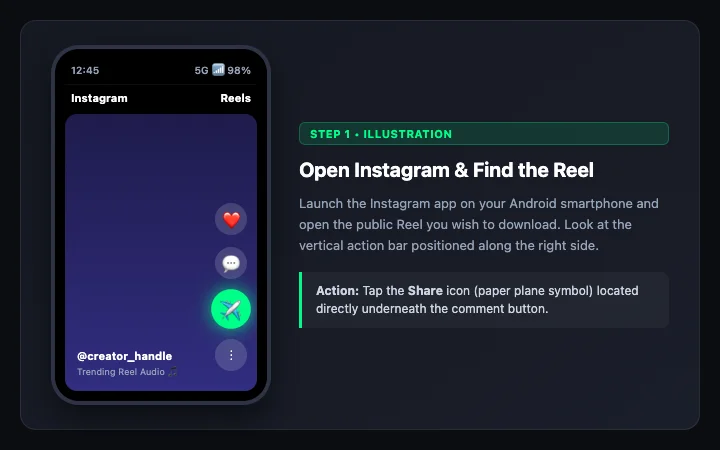
Locate the Share (paper plane) icon on the right side of the Instagram Reel screen.
Step 2: Copy the Reel link
Tap the Share icon to open Instagram's sharing drawer. Tap the Copy link button in the bottom action bar. A confirmation prompt reading "Link copied to clipboard" will briefly display at the bottom of your screen.
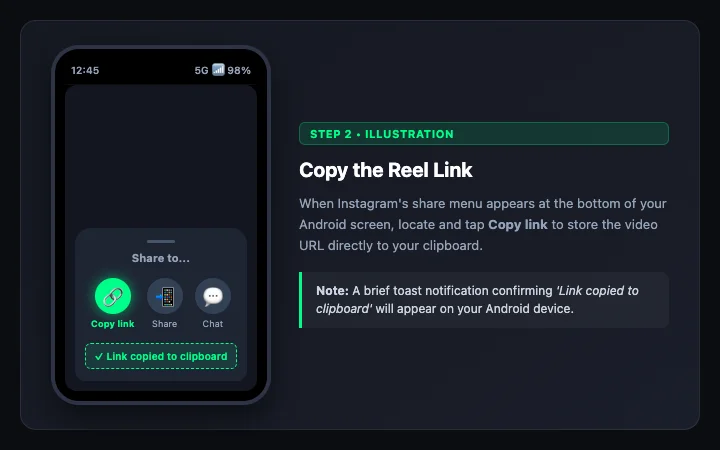
Select "Copy link" from the Instagram share menu to copy the URL to your Android clipboard.
Step 3: Open ReelsDownloader.me in an Android browser
Switch over to your mobile browser (such as Google Chrome or Samsung Internet) and open the Instagram Reels Downloader on ReelsDownloader.me. The search field will appear prominently at the top of the page.
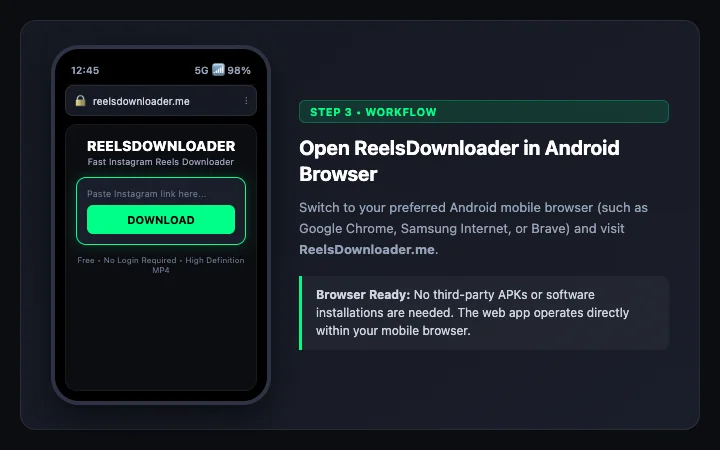
Navigate to ReelsDownloader.me in Chrome or your preferred Android mobile browser.
Step 4: Paste the copied Reel URL
Long-press inside the input box and select Paste from your Android popup menu. Once pasted, the platform resolver will recognize the Instagram link.
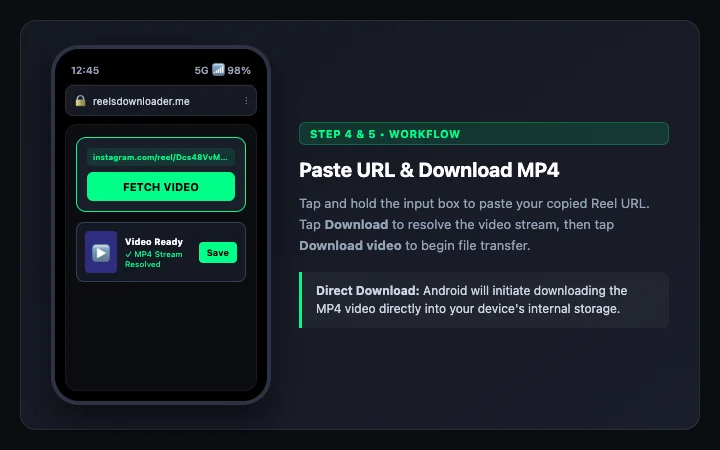
Paste the link into the input field and tap Download to process the video.
Step 5: Use the available download controls
Tap the green Download button. ReelsDownloader will resolve the underlying source MP4 stream. A built-in player preview will appear with a Download video button. Tap Download video to initiate the file transfer to your phone.
Step 6: Find the downloaded video on Android
Android will show a download progress bar in your notification shade. Once finished, tap the notification to open the video immediately, or locate the saved MP4 file inside your device storage.
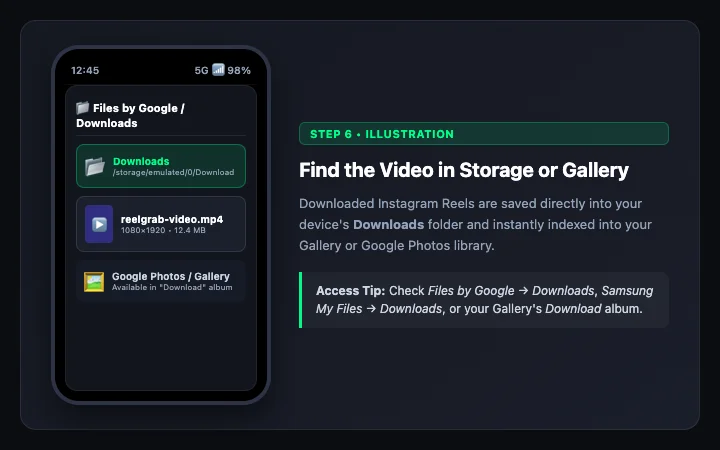
Android automatically stores the MP4 file in your Downloads folder and syncs it to your Gallery.
Where Are Downloaded Instagram Reels Saved on Android?
Different Android smartphone manufacturers organize files under slightly different folder hierarchies. Here is where your downloaded Reel is saved depending on the apps installed on your device:
| Location / App | How to Access on Android | File Path |
|---|---|---|
| Chrome Downloads | Tap Chrome's 3-dot menu (⋮) → tap Downloads. | chrome://downloads |
| Files by Google | Open Files → tap Downloads or Videos tab. | Internal Storage > Download |
| Samsung My Files | Open My Files → tap Downloads under Categories. | Internal storage/Download |
| Gallery / Google Photos | Open Gallery → Albums → locate the Download album. | Indexed automatically by media scanner |
If you recently saved a video and cannot find it in your Gallery app, the Android media indexing service may still be refreshing. Opening your file manager app (Files by Google or My Files) displays the file immediately in the Download folder.
Instagram Reel Not Downloading on Android?
If your download fails or produces an error message, review these common causes and practical solutions:
1. The Reel is from a private account
Instagram restricts private account content behind user authentication. Automated web downloaders can only access reels from accounts that are set to public.
2. Chrome download permissions are disabled
If Chrome fails to start the download, verify your browser permissions by going to Android Settings → Apps → Chrome → Permissions → Storage / Photos & videos, and ensure access is permitted.
3. Link copied with extra tracking text
When sharing links via chat apps, Instagram occasionally appends promotional text or tracking query parameters. Ensure you only paste the clean URL starting with https://www.instagram.com/reel/... into the input field.
4. Audio muting or regional licensing blocks
If Instagram has muted the audio of a Reel due to regional music licensing restrictions, the downloaded file will mirror the source audio availability.
For additional solutions and detailed error breakdowns, check out our comprehensive Instagram Reel troubleshooting guide.
Can You Download Private Instagram Reels?
No. ReelsDownloader does not support private Instagram Reels. Instagram encrypts and restricts media URLs on private profiles so that only approved followers can stream them while logged into the platform.
Because ReelsDownloader is an anonymous web tool that never asks for your Instagram password, account session cookies, or personal data, it cannot bypass Instagram's privacy protections. We only process public reels where creators have made their video accessible on the open web.
Use Downloaded Reels Responsibly
Saving a video to your personal Android device does not grant copyright ownership. Always respect content creators' intellectual property rights. If you intend to share or repost a Reel, obtain the original author's permission and credit their work appropriately.
Frequently Asked Questions
Do I need to install an APK or app from Google Play to download Reels on Android?
No. You do not need to install third-party APKs or applications. ReelsDownloader works directly in Google Chrome, Samsung Internet, and any other Android browser without downloads or logins.
Why does the downloaded video show in Files but not in my Gallery?
Some Android gallery apps only rescan device storage periodically. Restarting your Gallery app or viewing the video once through the Files app triggers the Android media indexer to display it in your Photos and Gallery albums.
Does downloading an Instagram Reel on Android notify the creator?
No. Instagram does not send notifications when someone downloads or copies the link to a public Reel.
Which Android browsers work best with ReelsDownloader?
Google Chrome and Samsung Internet offer the smoothest native download experience, but Firefox, Brave, Opera, and Edge on Android are also fully compatible.
How is downloading on Android different from iPhone?
On Android, files download directly into your device storage and appear in your Gallery automatically. On iOS, Safari saves files to the Files app first and requires an extra step to export to the Photos camera roll. For iOS steps, see our guide on downloading Instagram Reels on iPhone.
Download an Instagram Reel Now
Ready to save a public Instagram Reel on your Android device?
Paste your link into our free Instagram Reels Downloader to fetch the MP4 file instantly.
Need help on iOS? Read our How to Download Instagram Reels on iPhone guide.